Sunday, January 8, 2017

Analyzing UDP Performance

I came upon an issue where there was concern about external factors that might impact receipt and processing of UDP packets. Specifically, the question was why am I dropping UDP packets? There are a multitude of explanations, but since the answer isn't nearly as much fun as the search, here's how I started to investigate the problem. This post is focused strictly upon the process, not the answer.

Based upon the query, I knew walking into this the following:
  • irqbalance was in play, so the potential existed for a process to move around.
  • Other processes ran on the host (no big surprise), but admin processes should have all been pinned to CPU0.
  • The process in question (that consumed the UDP traffic) was being pinned to another CPU (not CPU0).
  • The fluctuation in the UDP receive queue implied that something was taking place on the same CPU, temporarily halting the movement of data from the buffer to the application.

The Lab


The target host is a 4-core Intel Xeon (2 sockets x 2 cores each) host with a 1Gbit Full duplex NIC. It's running CentOS 7.2 (build 1511). The application written for testing is written for (and run in) Python 2.7. The client is a Linux Mint desktop, also with a 1 Gbit NIC, full duplex.

Generating Traffic


To begin with, we need a way to induce UDP traffic at a pretty high rate (we want to induce load). I came across a wiki page at python.org that explained how to pass a message via UDP using a client/server application. I extended it into something that would do the same at a very high rate. Here's the code:

Server Side Application


#!/usr/bin/python

# udpconsumer.py: Open a port to read inbound UDP packet data

import socket

# Create a TCP/IP socket
sock = socket.socket(socket.AF_INET, socket.SOCK_DGRAM)

# Bind the socket to the port.
server_address = ('0.0.0.0', 10000)
print 'starting up on %s port %s' % server_address
sock.bind(server_address)

while True:
    data, address = sock.recvfrom(4096)
    print data


We begin by including the necessary modules, and creating the socket. Next we bind the socket to all interfaces (essentially, unlocking the door to allow traffic in). After a short message to the user, we enter an infinite loop that does nothing more than read the data being sent by the client application below, and printing it to the console (nice to know the app is working, but if you want even higher frequency, eliminate the print statement; then your server can process traffic at a higher rate.

Client Side Application


#!/usr/bin/python

#udptg.py: UDP traffic generator

import socket
import sys

#Create a UDP socket
try:
    sock = socket.socket(socket.AF_INET,socket.SOCK_DGRAM)
except socket.error, msg:
    print 'Failed to open socket. Error code: ' + str(msg[0]) + ': ' + msg
    sys.exit()

server_address = ('172.16.1.195', 10000)
pktcounter = 0

while True:
    pktcounter += 1
    # send data
    pkt_msg = str(pktcounter)
    sent = sock.sendto(pkt_msg, server_address)


In this app, we include our modules and open the socket. Next we specify where we are sending traffic (IP and port). We set a counter - this will end up being both the payload data, and the count of UDP packets sent. We create another infinite while loop to send data (the incrementing counter value).

Running the Applications


On the server, we start the server with:

    # ./udpconsumer.py

It will display a message, then just sit and wait for data.


On the client, when it comes time to send data, we initiate the script with:

    # ./udptg.py

When this is done, you can watch the terminal where the server started, and you should see numbers being output that increment by 1 on each line.

Measurement


OK, so with that, now we need some tools to measure what's going on. There are a few things I want to look at to start with. These include:

Size of the UDP buffer (how much stuff is waiting for the application)

Impact to CPUs (Utililzation)


Context switches (how often our ability to process inbound data is being interrupted)

Fortunately, these are not difficult to measure. To capture the buffer size, we can issue the following command:

    # while [ 1 ]; do netstat -lun | grep 10000 | awk \
      '{print $2}';sleep .1;done > file.dat

This polls the netstat command for UDP sockets, and filters out everything except the receive queue size, which is measured in bytes. It will produce a file with numbers on each line. Drop that into a spreadsheet to graph, grab average and standard deviation stats, and you have a good picture of what's happening in the UDP receive buffer.

Obtaining CPU utilization and context switches is just as easy. Each of the following will get that for you:

    # sar -P ALL   #displays CPU utilization on each CPU, and for
                   #all of them collectively.

    # sar -w       # shows context switches per second.


One important note for the sar data: you might consider increasing the interval from the default 10 minutes to 1 minute. The values sar displays are not point-in-time, but rather an average across the interval. By shortening the interval, your test runs don't need to be as long to get valid data. I set to 1-minute intervals, and ran the test for just over 7 minutes, throwing out the first and last minutes.

Poking the Bear to See What Happens


Now that we can watch what's happening, we want to play with some tunables to see what impact they have on overall performance. There are two things I've looked at: CPU pinning, and scheduling. By default, processes can run on any CPU, and can be switched around as the OS feels is necessary. In addition, the default CPU scheduler is SCHED_OTHER, and the default priority is 0 (basically, every process gets equal treatment. In our test, we want to see what happens if we force the kernel to only allow the application on a single CPU, and if we give that process more CPU time through the scheduler. The commands that allow this are taskset and chrt. We need to be able to do two things for each: set the values, and get (display) the values.

Getting taskset and chrt Values


First, obtain the pid of the process. Since the server-side application just sits and waits for traffic, we can start it up, and get its pid from the process table. As long as we don't kill the server application, we can reuse the same pid throughout the exercise.

    # ps ax | grep [u]dpconsumer

The first value on the line will be the pid (which in this case, is 17648).

The following illustrates checking the current scheduler configuration:

    [root@nebula sysadmin]# chrt -p 17648
    pid 17648's current scheduling policy: SCHED_OTHER
    pid 17648's current scheduling priority: 0


Here, we check the CPU affinity:

    [root@nebula sysadmin]# taskset -pc 17648
    pid 17648's current affinity list: 0-3
    [root@nebula sysadmin]#


Now that we know how to inspect the settings, we need to be able to modify them.

Let's change the scheduler to giver our application something more of real-time priority, and verify the change:

    [root@nebula sysadmin]# chrt -f -p 99 17648
    [root@nebula sysadmin]# chrt -p 17648
    pid 17648's current scheduling policy: SCHED_FIFO
    pid 17648's current scheduling priority: 99


Our process now takes advantage of a first-in-first-out scheduler, with a priority of 99 (nearly pushing other processes out of the nest). Note that once you do this, everything else slows down, including ssh sessions into the host.

Next, we're going to pin the process to run only on CPU3.

    [root@nebula sysadmin]# taskset -p 08 17648
    pid 17648's current affinity mask: f
    pid 17648's new affinity mask: 8
    [root@nebula sysadmin]# taskset -pc 17648
    pid 17648's current affinity list: 3


There is a little black magic, here. The command uses a mask as the -p parameter, which allows you to set the affinity to not only a single CPU, but any combination of all of the CPUs. This is handy, but requires that you understand how to translate the mask value (f) to one or more CPUs, and vice versa. This is pretty well documented in the taskset documentation.

Test Design


OK, so we can see how to inspect the queue, CPU utilization, and context switching, and we know how to change a few tunables that might impact those values. Let's put them all together.

I set up a test that consisted of 4 runs (tying the scheduler/priority to a single variable; you can split them out, but that then would reqiure 8 runs). For each run, I started by invoking the udptg.py application on the client (we executed udpconsumer.py earlier to get the pid, and it's still running on the server). After waiting a few seconds, I then kicked off the netstat command in the while loop on the server. Let that run for 7 minutes, then kill the while/netstat command, followed by killing the udptg.py command. After a minute or two of rest, I issue the sar commands, and capture the output. The reason we wait a few minutes is to allow periods of low activity to sit in between the test runs. This makes it easier to differentiate the periods of testing from each other.

Next we issue a taskset or chtr command (but only one at a time; if you found this page, you already understand the perils of measuring the impact of changing two variables at the same time).

Start the next test the same as the first, rinse and repeat through all four combinations.

Here's the result from testing in my lab:

AFFINITY       ALL        CPU 3      CPU 3      ALL
PRIO/SCHED     0/OTHER    0/OTHER    99/FIFO    99/FIFO

-------------------------------------------------------
AVG Q SZ        204448     207177      55571      51660
STD_DEV          24866      17924      90645      88253
CPU Util% Avg     42.0       96.2       49.3       14.7
CSWITCH/s     234035.3   242664.8    16752.4    17020.4


This shows the impact of CPU utilization across all CPUs during each of the 4 tests.

Here we see the impact of CPU utilization of CPU 3. We've removed much of the impact on CPU 0, at the expense of CPU 3.

In our context switches, we see that the impact of increasing the priority for our application really stopped much of the swapping of processes in and out of the CPUs. This may be bad for our server, but is good for the application.

TODO


There are certainly other variables you can change. If you're dropping packets, you can increase the buffer size, but all this really does is prolong the inevitable. There are other things to test as well, but this is really just a first pass. You might also consider pinning all administrative OS activity to a single CPU. This will get it off the pinned CPU (you didn't pin your application to CPU 0, did you?) In addition, if you're running other production applications, you might consider pinning them to CPUs other than where you're running your test in a second round, and observing the receive queue statistics.

I have intentionally avoided providing a conclusion. There are still some outstanding items (in addition to those above) that are not fully understood, and as such, it's difficult to infer a course of action. Most notably, there are a number of rows in the output of the netstat command with the value '213312' (many more than one would expect to occur organically). My initial hypothesis is that this is the maximum size of the buffer. I still need to understand why this value appears so frequently. In addition, there are roughly 44M UDP packet receive errors as reported in 'netstat -s', but no drops reported in the output of ifconfig. Finally, I am not comfortable with the excessive standard deviation listed for the last two columns. It's surely related to the appearance of '213312' in the data, but needs to be confirmed. All that said, We've at least made a start in understanding how to reduce the buildup of data in the UDP buffer.

UPDATE 1


I ran the third configuration (pin the application to CPU3, PRIO=99, scheduler=FIFO) again, but this time, islolated CPUs 2 and 3 from all other processes. This was accomplished by adding

     isolcpus=2,3
 
to the end of the GRUB_CMDLINE_LINUX line in /etc/default/grub, reinstalling grub (grub2, actually) with:

     # grub2-mkconfig -o /boot/grub2/grub.cfg

and finally, rebooting. A Quick look at the output of 'sar -P ALL' confirmed that there was no activity on CPUs 2 and 3. Here is the comparison of the two sets, changing only the CPU isolation:

ISOLCPUS       N/A        2,3
AFFINITY       CPU 3      CPU 3
PRIO/SCHED     99/FIFO    99/FIFO

---------------------------------
AVG Q SZ         55571       6754
STD_DEV          90645       8761
CPU Util% Avg     49.3       44.0
CSWITCH/s      16752.4    15507.6


The receive Q size is just over 10% of the previous value, the standard deviation is less than 10% what it was, and we trimmed another ~5% off CPU utilization for the core. This is a huge improvement, but by no means, deterministic, yet. In addition, the '213312' value is still showing up in the output of the netstat command, and our context switches show only minimal improvement.

I next tried to test the hypothesis that  213312 is the UDP receive buffer size. By adding the two following statements before the while loop, we can get and print the buffer size:

udprcvbufsz = sock.getsockopt(socket.SOL_SOCKET,socket.SO_RCVBUF)
print 'UDP Recv Buffer Size: ' + str(
udprcvbufsz) + ' bytes'

This returns the value 212992, which is exactly 320 bytes smaller than our mystery value. I read that TCP reserves some of the TCP buffer space for admin purposes, and I think this may be the case (but still need to research this).

I also captured the pre- and post-netstat statistics (netstat -s), and found the following:

Metric                     Actual  %_of_Tot
-------------------------------------------
TOTAL UDP Pkts Received   2995612    100.00
Pkt Recv Errors             94435      3.15
Recv Buffer Errors              0      0.00


Tuesday, November 15, 2016

Glenwood Trail Hike

Trail head on U.S. Highway 20 in Furnessville
Glenwood Trail (formerly Ly-co-ki-we Trail) sits in the Indiana Dunes National Lakeshore in Northwest Indiana. Depending upon the route you take, it is anywhere from 3 - 7 miles more or less.

The terrain is mostly flat with the occasional small hill (6 - 10m) here and there. The bulk of the trail is firm sand, as the trail is shared with horses in the summer. Most of the trail is wooded. As my hike took place in November, there were few leaves left which increased visibility, but also allowed in more sound from surrounding highways. There are clearings throughout, and a few spots take you through wetlands. The path itself tends to be from .3 - 1.5m wide, and generally easy to find, even with the deluge of leaves.

NE part of the trail.

Unfortunately, the bulk of the trail tracks U.S. Highway 20 in the beginning and end, and U.S. Highway 12 to the north for much of the walk. This means lots of noise from trucks moving steel and supplies in and out of local steel mills. That was really the only downside, but enough to warrant making this trail a second choice.

Wildlife was for me, not very interesting; perhaps because I grew up around the area. There were brown squirrels, crows, and white-tailed deer. The image below was shot at about 30m away from the deer. There were in fact, two - one is hiding behind the trees to the right of the one in the picture.

Can you find the doe in this picture?
The highway noise notwithstanding, the walk was enjoyable. Being a Tuesday morning, I only ran into one other person on the trail, and the sand helped make for a good workout.

The full route as captured on my phone.


Details:
Starting elevation: 193 ft.
Peak Elevation: 217 ft.
Distance: 10.6 km
Time: 2.5 hours
Weather: Sunny, wind ~ 5 mph, 55 deg F.

Sunday, October 23, 2016

Cowles Bog Hike

Update: I just uploaded the completed video of the hike to YouTube. Check it out:


Cowles Bog was designated a historical site back in 1965 due to it's varied ecology. It sits in the Indiana Dunes National Lakeshore system, between Michigan City, and the Arcelor-Mittal (formerly Bethlehem) steel mill. Hiking Cowles Bog was my second hike for the year. It's a short hike, but has a character all its own. Here's the path:


The full 4.42 mile hike

I started out in the lower right corner on Highway 12. The initial southwest and westbound walk is a service road, and not too interesting. This part of the hike is done under the shadow of the steel mill, about which I was not enthusiastic. The trees through the remainder of the northwest part of the hike did well at hiding the mill (though there was a scent of coal smoke in the air). Just before hitting the beach there is a sharp incline of about 100', followed by the corresponding descent. Then there is a nice walk in the dunes along Lake Michigan.

A look north out over Lake Michigan

Next, stood the second incline, looming over you, daring you try. Another 100', so the ascent was not too bad, but it was sharp, and the soft beach sand all the way up made for a tough climb. Every step lost about 3 - 4" as you foot slid back down in the sand.

The second incline back into the woods, taunting you at every step.

At the top, there is a nice spot to sit and look out over the lake. If you look out on a clear day at roughly 305 degrees, you can see Chicago on the other side.

The next part of the hike is very woody, and was both quiet and nice. Once through the woods, there is a long trek along the side of the bog:

The south bog.

An interesting plant growing on the bog. I haven't been able to identify it. Leave a comment if you know?


This take you back to the ranger station on Mineral Springs Road. A quick jaunt down the road, and you're done.

The elevation profile.

Details:
Starting elevation: 618 ft.
Peak Elevation: 704 ft.
Distance: 4.42 mi.
Time: 2.0 hours
Weather: Sunny, wind ~ 15 mph, 70 deg F.

Sunday, October 9, 2016

Bald Mountain Hike


This was my first hike. I've documented it for posterity, and hoping there will be more. It took place during a company outing to Park City, UT on October 1st, 2016. Here's the overall route:

The full route starting at St. Regis on the left, ending at Stein-Erickson.

We started up the mountain behind the lodge I was staying in (the company had two; St Regis, and Stein-Erickson). We took switchbacks up the side for about an hour to get to the top. That was fun, though my heart was really pumping. The starting elevation was about 7400 ft., so there wasn’t as much oxygen as I was used to. At the top, most of us decided to go further. One of the guides took about a fourth of the group down, and the rest of us went around, and eventually ended up at Stein-Erickson. 

That's when the real hike began. Nichols, an Australian co-worker asked where a particular service road went. When the guide said it went up to the top of the next mountain, we had already decided to keep pushing. This time, there were only six of us, plus the last guide; a stocky dark-skinned guy with short slightly graying hair, and a white polo. The hikers included Nichols, Wesley, Westin, Jared (one of the Linux guys on my team), and Nicolette, our compliance attorney. We started up the road which became very steep, very fast. It took us through the woods until we came to a clearing; it turned out to be a ski slope. At that point, the guide had to get back to meet up with another group. We went straight up the slope until we hit the trail, maybe 150 feet or so. It doesn’t seem like much, but the grade made for a grueling climb. Once we hit the trail, I started to get very tired, and started to lag behind a bit. Nevertheless, I kept pushing. After another 1000 feet more or less, my fingers started to swell, and started getting numb at the tips. That’s when I had to stop and rest. It took maybe 5 or 10 minutes to get rid of the light-headedness and tingling, so we pushed on. The remainder of the climb, up to about the last 500 feet was much of the same; light-head, tingling, swelling fingers, and nausea started to set in. Wesley, one of the traders hung behind the rest of the group; I suspect it was to help keep an eye on me (I was the oldest of the team, and it was showing). We finally found a service road which then turned and led straight to the top. The walking path continued around the back of the mountain.

We decided to head straight up the service road. This was where the hike got really hard. It was so steep I could only go 30-50 feet before I had to stop and rest for three to five minutes. It went on like that for seven or eight cycles, until the grade started to get more even (still ascending, to be sure, just at a much more tolerable angle). I went around, climbed up a short embankment, then the last path to the summit. I was so hot and tired, I could hardly move. I thought when I got to the top that had I known further down what laid ahead, I would have quit, believing I could not do it, but I did. It was the most demanding physical activity I have ever done, and I loved it.

Elevation Profile


Details:
Starting elevation: 7440 ft.
Peak Elevation: 9344 ft.
Distance: 5.94 mi.
Time: 2.5 hours
Weather: Partly cloudy, wind ~ 10 mph, 70 deg F.

From left to right: Brian (joined up at the top), Nicolette, Nichols, Wesley, Jared, Westin, Rich (front row)


Thursday, September 29, 2016

Operational Maturity

OK, I'm coining a new phrase. It's called operational maturity, and it's the difference between a someone who possesses great skill, and someone who is great at what they do.

First, a few real-life examples:

Case 1: Missed Opportunity with the Family
Joe has a server deployment due on Friday. Bob, the hardware guy, owns the task of racking the server, and configuring hardware according to organizational specifications. Joe's job is to take the server over, once racked, and to get the operating system and configuration portion done. Once Joe is done, he'll hand the server off to Sarah. She will install the applications, configure them, and ensure that when the server boots, it's ready for duty. The problem is, it's Thursday night, Joe just saw the e-mail that the server has been racked and configured, and he is scrambling to get the work completed so the server can be delivered. The OS is installed, but the server just won't boot, but if you're paying attention, that's irrelevant. Joe's night with the family is shot as he's working through troubleshooting and getting the host stood up.

Case 2: It Was Fine When I Left It...
Mark put in his change order. He conformed to change control procedures by documenting the steps to execute the change. He put in a nice back-out plan, and even included a validation plan. The change was intended to resolve a performance issue where it was suspected that I/O was slow due to excessively large buffers. So the steps included changing the size of the buffers in a configuration file, making the same change to the running operating system, and testing. His validation plan was to print out the configuration file to the console, and look for the new setting in the output. This would ensure that the steps of the change were performed correctly. When he was done, he dutifully performed the validation, which passed, and disconnected for the night. Meanwhile, the server is now dropping an average of 450 packets per second, and performance is no better than it was.

Case 3: The Case of the Disappearing Server
Sheila is troubleshooting a Linux server. It's running, but is experiencing I/O errors, and there is concern that the box may fall over. For the uninitiated, there are two ways to access the server: ssh (think Putty or SecureCRT; specifically, access via the network interface), and a server console connection through its out-of-band interface (HP iLO, Dell iDRAC, etc.). Just to complicate things, the server is in a secondary data center over 200 miles away. Connected into the server using ssh, she makes some configuration changes, then reboots the server. Two minutes pass, then three, then five. Pings continue to fail; something is wrong here. Attempts to connect to the out-of-band interface are coming back with errors indicating the remote device cannot be reached.

Each person is technically very proficient, but they all made an error, and it was the exact same error in every case. In case 1, Bob handed the server over to Joe the night before it was due to be delivered. Mark validated the change steps, rather than the intent of the change. Shelia assumed that when the server was rebooted, it would come back. Had Bob turned the server over to Joe two days prior, there would have been time to deal with the unruly hardware. Had Mark devised a performance test, he might have seen that packets were dropping. Had Sheila simply opened an out-of-band console session prior to the start of the work, she would have realized the danger in restarting the server, since she would have known in advance that a failed reboot would mean no access to the server at all.

So the error? In every case, the engineers planned their work around the scenario they hoped would happen. Those possessing operational maturity recognize that things can and will go wrong, and they build contingencies into their planning. We will all make mistakes, either through mistyping a command, making an assumption, or simply overlooking a detail. But, by demonstrating operational maturity, we build in the safety nets that protect the business/organization.

Saturday, August 13, 2016

Shooting the Sun

I've been playing with astrophotography this year; mostly shooting images of the moon through the telescope. Today, I tried my hand at the sun. I have been planning a solar observer for some time, so today I built a small prototype. It's not unlike a pinhole box we used in school, but this time, I decided to incorporate a scope. For the prototype, I used a consumer-grade set of binoculars from Bushnell. Here is the setup:


I used a 37" long cardboard box. The interior is the traditional brown (no black paint to minimize light reflection). I cut a hole in the side for the camera, which viewed from the top. The camera was my Nexus 5x smartphone. I ended up zooming in 4x to get the image as large as possible in the frame. For the reflective surface, I used a piece of Kodak matte finish photo paper mounted onto a piece of copier paper, in turn mounted on a piece of cardboard. Here's what I ended up with:


You can see four sunspots in the upper-left quadrant of the frame. Unfortunately, they looked better when looking directly at the image, but this is just the first attempt. There was some post-processing to get the image you see here:

  • Removed dark spots caused by debris landing on the paper during the shoot.
  • Increased contrast, and reduced brightness slightly.
  • Added details about the shoot to the image.

The achromatic aberration was much more dramatic than I expected. While undesirable, it makes for a good discussion on how light bends through glass.

Sunday, July 24, 2016

Creating a PXE-Based Deployment Server on CentOS 7

Note: This is the first of a multi-part series in which we will be building a fully-automated deployment system.

Objective

Set up a deployment server on CentOS 7 for Linux hosts. Target hosts may be CentOS 6 or 7.

Prerequisites

On the deployment server, have DNS (bind) and DHCP configured and running. Use kickstart for laying down the OS, and Ansible for configuration.

Environment

Here's what the build environment looks like. This will guide many of the configuration decisions below.
Deployment Server: a CentOS 7 server with the address: 172.16.1.1/16, and hostname of 'deploy'.
Provides:
  • DNS
  • DHCP
  • PXE
  • TFTP
  • SSH

Discussion

This first installment is strictly setting up the PXE environment and repositories so we can deploy a server. Manual attendance is required to select the appropriate image, perform final networking configurations, and similar tasks. In later additions, we will be automating end-to-end deployments. But, in the meantime, we don't want to redesign our environment as we go, so we're making some decisions now that may seem overkill, or otherwise not necessary. For example, all home, and application directories are made available via NFS. In this way, once the end-to-end deployment process completes, a server should be able to do a final boot, and be ready to start work.

The build philosophy is rather straight-forward. There will be multiple phases: OS Deploy, OS Configuration, Application Deploy, etc. Each phase handles only the minimum tasks required to get us to the next phase. There is one exception to this rule: In the event that a task may be completed in multiple phases, and the outcome of that task is more reliable in a later phase, we will perform that task later, rather than earlier. Simplicity is important, but reliability is non-negotiable.

Rebooting is only necessary at the end in the event that we change the status of selinux. If selinux is already disabled when you begin, a reboot is not required. Instead, I would recommend restarting each service as you complete the configuration changes for that service. This is easily enough accomplished with:
# systemctl restart <servicename>.service
where <serivicename> is httpd, dhcpd, or xinetd.

We will be performing the entirety of this installation as the root user. Consider that it is bad practice to manage a server as root, but in this case, I consider this activity to be standing up a server, rather than operational maintenance. As such, it is likely not yet in production, so the standard to which we work is different. That said, you will be root, so read and understand each command below before you type it in at the keyboard.

Configuring the client is largely left to the reader, but I will provide some hints, particularly as they apply to VirtualBox.
  • It makes no difference at all whether the disk is dynamic, or fully allocated when the VM is created. What does make a difference (at least for the procedure below) is that the disk is at least 8Gb is size. The disk partitioning section of the KVM will need an 8 Gb disk at a miminum (larger is OK, but extra space won't get used with the kickstart file directives below).
  • Make sure to set the host to boot from Hard disk first, then PXE. You can disable CD and floppy completely. (Regardless, My VirtualBox still asks to map a CD-ROM when the host first boots, but you can ignore that message by clicking the Cancel button. The deploy will continue.
  • In the Network settings, set the adapter to 'Bridged'. If it's NAT, it will not be able to find the DHCP server, and the deploy will fail.

Installation

On the deployment server:
  • # yum install httpd xinetd syslinux tftp-server -y
When complete, /var/lib/tftbboot/ will be the PXE directory.

Configure PXE on the deployment host

# cd /usr/share/syslinux/
Copy the following TFTP configuration files to the /var/lib/tftpboot/ directory.
# cp pxelinux.0 menu.c32 memdisk mboot.c32 chain.c32 /var/lib/tftpboot/
Edit file /etc/xinetd.d/tftp and enable TFTP server.
# vim /etc/xinetd.d/tftp
Change “yes” next to disable to “no”. Save and quit:
:wq


Set Up Repositories

It is assumed that you either have sufficient disk to house repositories (they can run from 4Gb - 7Gb each). My deployment server is a KVM virtual guest, and I have a KVM .img file sitting on the side with the repos on it. I mount it under /var/lib/tftpboot/repository/. My initial repo is CentOS 7.2 (build 1511) stored in: /var/lib/tftpboot/repository/CentOS-7-1511-x86_64/. Ideally, the goal is to provision servers such that they are alike, so we would not house too many repositories. 50Gb - 100Gb should be sufficient for most shops.
# mkdir /var/lib/tftpboot/repository/
If you are mounting a separate partition/device under /var/lib/tftpboot/repository/, do so now.
Here, we set the appropriate permissions so that hosts can access files in the repo when needed.
# cd /var/lib/tftpboot 
# chown -R apache.apache * 
# cd repository 
# find . -type f -exec chmod -R 744 {} \; 
# find . -type d -exec chmod -R 755 {} \; 


Configure the Apache httpd Service

We will be using the Apache httpd web server to make files available. We need to configure permissions within Apache, as well as at the file system level.
# vim /etc/httpd/conf.d/pxeboot.conf
There are a few customizations required here. The IP network number must match the network from which clients will be booting. I've selected 172.16.0.0/16, as a that matches my setup. You will also need to specify the directory used for the repo. The settings below will make sure all hosts within your subnet have access to the repository files. If you have a limited DHCP range, you could tighten this down a little further to hosts in that DHCP range. See www.apache.com for details on setting up access.

For servers running Apache 2.2, add the following and save:
Alias /repository /var/lib/tftpboot/repository 

<Directory /var/lib/tftpboot/repository> 
    Options Indexes FollowSymLinks 
    Order Deny,Allow 
    Deny from all 
    Allow from 127.0.0.1 172.16.0.0/16 
</Directory>
For servers running Apache 2.4, add the following and save: 
Alias "/repository" "/var/lib/tftpboot/repository" 

<Directory "/var/lib/tftpboot/repository"> 
    Options Indexes FollowSymLinks 
    Require ip 172.16.0.0/16 
</Directory>

Validate the Apache configuration:
# apachectl configtest

If all goes well, the command should return "Syntax OK".

If selinux was already disabled, you can simply restart httpd now using the command shown above. Otherwise, the new settings will be applied at reboot time.

Configure the PXE Boot Service

# vim /var/lib/tftpboot/pxelinux.cfg/default
Add the following and save:
DEFAULT menu 
PROMPT 0 
MENU TITLE ----==== Host Deploy System ====---- 
TIMEOUT 200 
TOTALTIMEOUT 6000 
ONTIMEOUT local 

LABEL local 
        MENU LABEL (local) 
        MENU DEFAULT 
        LOCALBOOT -1 

LABEL CentOS-7-1511-x86_64_KVM 
        kernel /repository/CentOS-7-1511-x86_64/images/pxeboot/vmlinuz 
        MENU LABEL CentOS-7-1511-x86_64 KVM 
        append initrd=/repository/CentOS-7-1511-x86_64/images/pxeboot/initrd.img lang=  rd_NO_LVM rd_NO_MD rd_NO_DM 
inst.ks=http://172.16.1.1/repository/templates/CentOS7-1511-KVM_base.cfg 
inst.repo=http://172.16.1.1/repository/CentOS-7-1511-x86_64  
        ipappend 2 

LABEL CentOS-7-1511-x86_64_OVB 
        kernel /repository/CentOS-7-1511-x86_64/images/pxeboot/vmlinuz 
        MENU LABEL CentOS-7-1511-x86_64 Oracle VirtualBox 
        append initrd=/repository/CentOS-7-1511-x86_64/images/pxeboot/initrd.img lang=  rd_NO_LVM rd_NO_MD rd_NO_DM 
inst.ks=http://172.16.1.1/repository/templates/CentOS7-1511-OVB_core.cfg 
inst.repo=http://172.16.1.1/repository/CentOS-7-1511-x86_64 
        ipappend 2 

MENU end

This probably requires a little discussion, as there is a lot going on in this configuration file. /var/lib/tftpboot/pxelinux.cfg/default is the default file that is sent to a server requesting PXE boot services. Other than default, you can specify a configuration file for an individual host (the host's MAC address is the filename), or configuration files for sets of MAC addresses. We're not there yet, so for now, we're going to set up just the default, and build upon that later.

We have two menu items, one for a KVM guest, and one for an Oracle VirtualBox guest (yes, for the moment, we are only deploying virtual machines). This is because the details of the kickstart files vary significantly from one to the other, and this is a clean way to specify how each should be build. Once we move on to push-button installs, the multiple menu items will be of little use.

There are some specific settings in the 'append' line that deserve mention:
  • rd_NO_LVM: We're not using LVM, but we could do so easily. What's important is that if the kickstart file we use builds storage using LVM, this parameter must be removed from the append line.
  • rm_NO_MD: Same here; no software RAID is being used, so we remove that from the build OS environment.
  • rd_NO_LUKS: We're not encrypting any disks, so no need to load support for this into the build OS environment.
  • inst.ks and inst.repo: If you are used to ks= and repo= lines from earlier kickstart environments, you'll need to get used to these new parameters. You servers will not be able to find the repo or kickstart files without them.
  • For each repo specification, I point to the files stored in the repo. There are a number of tutorials that have you copy the kernel (vmlinuz) and initial ram disk (initrd.img) files to a location such as /var/lib/tftpboot/images/, and pull from there. This is not a bad idea if you have limited space on the partition that holds /var. If you mount the repo under /var, however (or you have a large amount of disk space under /var, and can simply drop your repos there), I think it makes sense to reference the files inside the distribution rather than making a copy. This reduces duplication, and hence, complexity.

We'll get to more kickstart stuff later.

Configure the DHCP Service

Now we modify dhcpd so that it will hand out an address to a host attempting to PXE boot.
# vim /etc/dhcp/dhcpd.conf 
Add the following & save: 
allow booting; 
allow bootp; 
option option-128 code 128 = string; 
option option-129 code 129 = text; 
next-server 172.16.1.1; 
filename "pxelinux.0";
These are the statements required to enable the DHCP service to support PXE. I have a subnet stanza in my configuration, and that stanza contains a 'class pxeclients' stanza. This came with the original dhcpd.conf file that I used. Since that stanza contains a set of options to determine the 'filename' line, I can omit that from the set of configuration options above.

The next-server tells the host that is obtaining an IP address where to look for a PXE boot environment. This is the address of our deploy server.

Save and quit:
:wq

The Kickstart Service

Red Hat and derivatives maintain a 'kickstart' service to help automate provisioning. In short, the kickstart configuration file is nothing more than a set of directives that anaconda (the installer) reads to determine how to install RHEL/CentOS/Scientific Linux on the host. Specifying the individual parameters in the kickstart file is well beyond the scope of this document, but will be critical for completing your deploy server. So, there are a few notes here on the topic.

Below in the References section is a link to the kickstart documentation published by Red Hat. The link below is specific to Red Hat (and thus CentOS) 7. Be wary, as there are a number of links out there pointing to many different versions, and it's usually only in the link that you can tell which document pertains to a specific version of the OS.

Creating a kickstart file from scratch is a very tedious task. Recognizing this, the good folks who maintain Anaconda provide a shortcut. To use this, do the following:
  • Locate a suitable server that is as close to the specifications as what you will be using the deployment server for. You will be installing a new OS on this server, so make sure it isn't something you need.
  • Using a CD, repo, or other source of the OS distribution files, install CentOS 7 on that server.
    • Feel free to use the graphic installer; no need to make things difficult, and the graphic installer gives you more control over the disk layout.
    • As you are installing, make the decisions/selections as if this would be a server you are deploying automatically from your deployment server. For example, if you are deploying an application server that does not require a GUI, don't select GUI, an so on.
    • One final note: Going back to our build philosophy, consider configuring the server with only the 'core' files. That will be enough to boot the server, and we can then use the automated process later to add additional packages.
  • Once the OS is installed, reboot the server, and log in as root (you must create the root account and password as part of the installation process).
  • In root's home directory, locate the file anaconda-ks.cfg. This is your starter kickstart file. It contains all the directives necessary to deploy the OS you just installed.
  • Make changes to the configuration file to allow unattended installation
    • Locate the entry that describes the source repo (probably something like "cdrom"), and change to
    • url --url="http://172.16.1.1/repository/CentOS-7-1511-x86_64"
    • Locate the firstboot entry and change from --enable to --disable. Again, this will require that you manually configure network settings once the host is provisioned, but we'll deal with that later. Hint: once booted, login as root and type "setup".
    • locate the line that reads "graphical" and change to "text".
    • This should create a suitable kickstart file to start off with. There are many options to customize how kickstart works. I strongly encourage you to check out the link below, and learn more. Just remember, we want to do most OS configuration work after the OS installed.
    • Add the 'reboot' directive at the end of the file to automatically reboot the server.
  • Now, rename the file to something descriptive. From the PXE menu, you can see I have two, and named them CentOS7-1511-OVB_core.cfg and CentOS7-1511-KVM_base.cfg. This name is important. It's how we will distinguish one build type from another. It should contain enough information for you to tell which is the most suitable for a given server purpose. Mine describes the following:
    • OS Name (CentOS): I may later want to provision Linux desktops with Linux Mint. This is how we tell the difference.
    • OS Version (1511): While not as obvious, this tells us the version (7.2) and build (1511) of CentOS. Different builds will contain different packages, versions of packages, and configurations that determine how the server responds.
    • Platform (OVB and KVM): Again, each kickstart file is slightly different depending upon the Virtual host software in use. In addition, there will be more differences when/if we start adding kickstart files for deploying to the server directly.
    • Software set (core, base): Tells us which software set we installed. In my case, 'base' was a leftover from a previous installation, so I included it. If I had not had that already, I would likely have stuck to the design philosophy, and created a core installation to drop on KVM.
  • Finally, create a directory to house your kickstart config files, set the permissions, and copy your new kickstart configuration file there:
# mkdir /var/lib/tftpboot/templates 
# cp <your-kickstart.cfg> /var/lib/tftpboot/templates/ 
# chown -R apache.apache /var/lib/tftpboot/templates 
# chmod -R 744 /var/lib/tftpboot/templates/* 
# chmod -R 755 /var/lib/tftpboot/templates
Here is a sample kickstart file I created to test my unattended Oracle VirtualBox installations. One thing to note is that I've added an ansible account. We'll come back to that in a future posting. Also, you might note the '--device=' parameter was moved out of the first network line and into the second. This is not by accident. There is a bug in RHEL (and downstreams) that will cause an error if the 'device=' line is not in the same network directive line as '--hostname'.
#version=DEVEL 
# System authorization information 
auth --enableshadow --passalgo=sha512  
# Use network installation 
url --url="http://172.16.1.1/repository/CentOS-7-1511-x86_64"  
# Use graphical install 
text 
# Run the Setup Agent on first boot 
firstboot --disable 
ignoredisk --only-use=sd  
# Keyboard layouts 
keyboard --vckeymap=us --xlayouts='us' 
# System language 
lang en_US.UTF-8  
# Network information 
network  --bootproto=dhcp --ipv6=auto --activate 
network  --hostname=localhost.localdomain --device=eth0  
# Root password 
rootpw --iscrypted $6$Seed-text-string$This-string-will-be-replaced-with-the-encrypted-password.  
# System timezone 
timezone America/Chicago --isUtc 
user --groups=wheel --name=ansible --password=$6$seed-text-string$Seed-text-string$This-string-will-be-replaced-with-the-encrypted-password. --iscrypted --uid=1001 --gecos="Ansible Admin Account" --gid=1001  
# System bootloader configuration
bootloader --append=" crashkernel=auto" --location=mbr --boot-drive=sda
  
# Partition clearing information 
clearpart --none --initlabe  
# Disk partitioning information 
part /boot --fstype="ext4" -- 
ondisk=sda --size=250 --label=BOOTPART 
part swap --fstype="swap" --ondisk=sda --size=989 
part / --fstype="ext4" --ondisk=sda --size=6750 --label=ROOTPART  
%packages 
@^minimal 
@core 
kexec-tools 
%end 
%addon com_redhat_kdump --enable --reserve-mb='auto' 
%end 
#Reboot the server upon successful installation 
reboot

Configure firewalld and selinux

Shut off firewalld:
# systemctl stop firewalld.service 
# systemctl disable firewalld.service
Disable selinux:
# vim /etc/sysconfig/selinux
Replace
SELINUX=enabled
with
SELINUX=disabled
Now save and exit:
:wq

Reboot

Now it's time to reboot. Again, this is really only necessary in the event that we changed the status of selinux. If it was already disabled you could simply restart each service as you configure it.
# reboot 

Validate Services

Login as root, and run your validations on the services:
[root@deploy ~]# sestatus 
SELinux status:                 disabled

[root@deploy ~]# for SERVICE in xinetd dhcpd httpd firewalld; do echo $SERVICE;systemctl status $SERVICE.service | grep Active;done 
xinetd 
   Active: active (running) since Sat 2016-07-23 18:05:15 CDT; 16h ago 
dhcpd 
   Active: active (running) since Sat 2016-07-23 18:05:36 CDT; 16h ago 
httpd 
   Active: active (running) since Sat 2016-07-23 19:49:24 CDT; 15h ago 
firewalld 
   Active: inactive (dead)
All services should show "Active: active (running) except firewalld, which we can inactive. (There are some tutorials on setting up firewalld to work with PXE booting, and it's not a bad idea at all from a security perspective. That said, it is very uncommon, even in very security-conscious organizations to place firewalls directly on the host. Generally, firewalling takes place in the networking layer, leaving hosts use those compute cycles for business processing.)

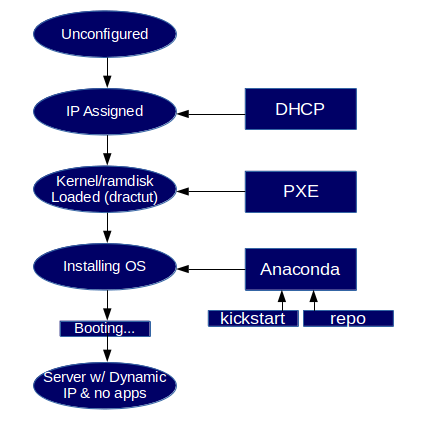
You can now create and PXE boot your new servers. Here is a small diagram demonstrating each state the new host is in from the moment of power-on to the end of the deployment process.


References